Settings#
Settings provide access to personal, project, and workspace-level configuration, as well as information about integrations with external systems.
Personal Settings#
Personal Settings allow users to manage their account information, interface preferences, access tokens, and password.
To access Personal Settings:
- Open Settings.
- Select your user profile under Personal.
The Personal Settings page contains the following tabs:
- Account — view and manage personal account information.
- Appearance — configure interface appearance preferences.
- Access tokens — generate and manage tokens for API authentication.
- Password — access password management settings, where available.
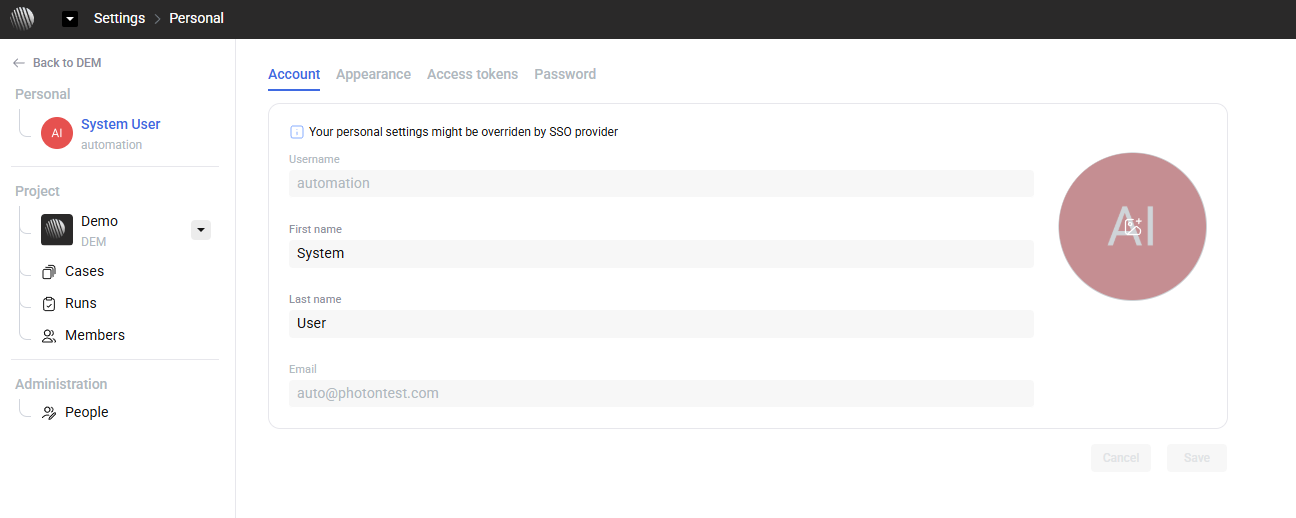
These settings apply to the current user and do not affect project or workspace configuration. Some account settings may be controlled by an SSO provider.
Access Tokens#
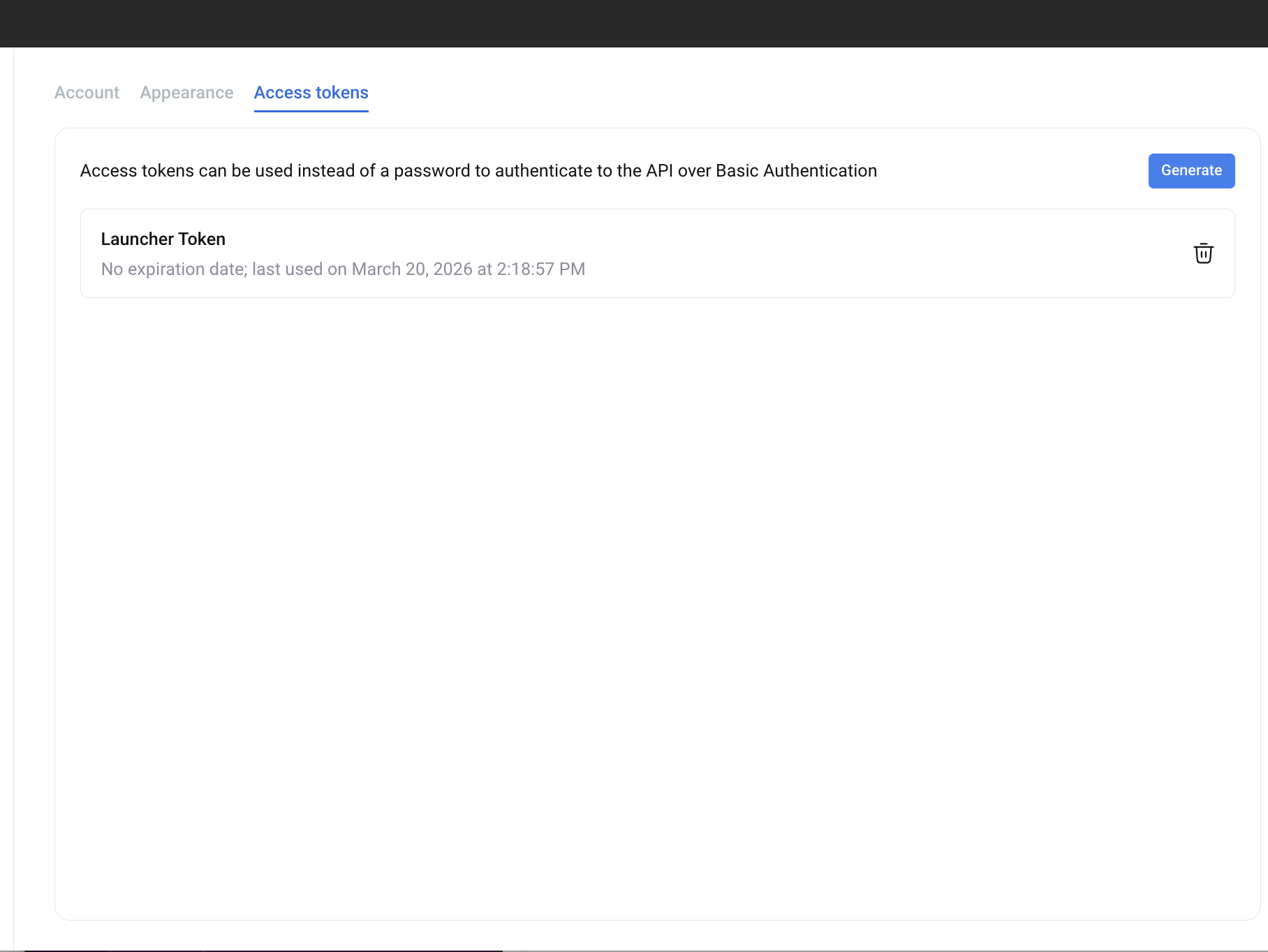
Access tokens can be used instead of a password to authenticate to the Photon API using Basic Authentication.
To manage access tokens:
- Open Settings → Personal.
- Select the Access tokens tab.
The page displays existing tokens, including their names, expiration information, and last-used timestamps.
Generating an Access Token#
To create a new access token:
- Open the Access tokens tab.
- Click Generate.
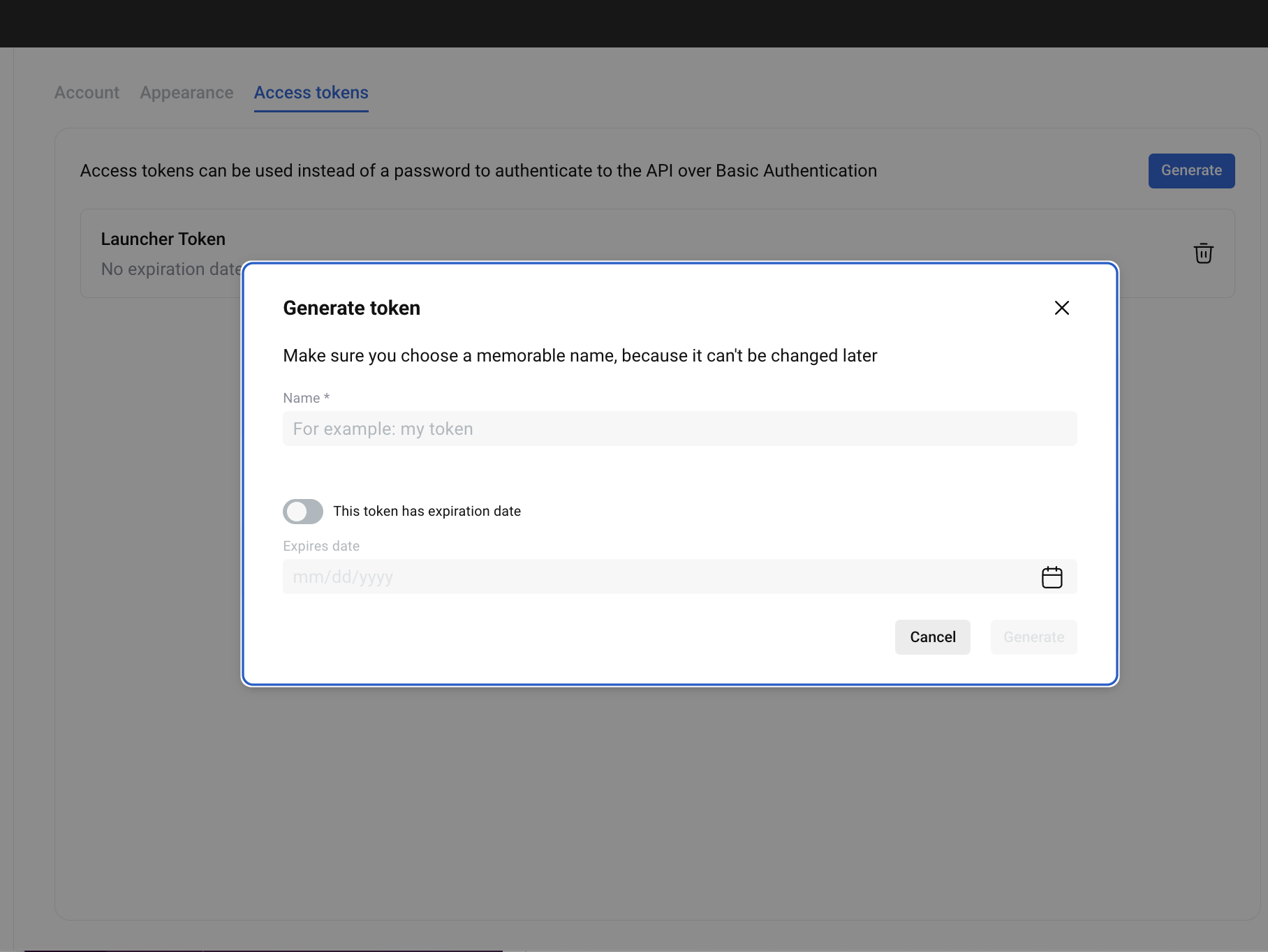
- Enter a name in the Name field. Choose a descriptive name, as it cannot be changed later.
- If the token should expire, enable This token has expiration date.
- If expiration is enabled, select the Expires date.
- Click Generate to create the token.
Store access tokens securely. Do not include them in prompts, source code, or publicly accessible configuration files.
Managing Existing Tokens#
The Access tokens tab displays previously generated tokens.
For each token, users can:
- View its name.
- Check whether an expiration date is configured.
- View the last-used date and time, when available.
- Delete the token using the trash icon.
Delete tokens that are no longer needed or may have been exposed.
Project Settings#
Project Settings control configuration for the current project.
Profile#
The project profile includes:
- Project name and key
- Access level
- Project lead
- User role within the project
- Creation date
Members#
Project members are managed in Project Settings → Members.
In this section, you can:
- View all members of the project
- Search for users
- Add new members
- Remove existing members
- Change assigned roles
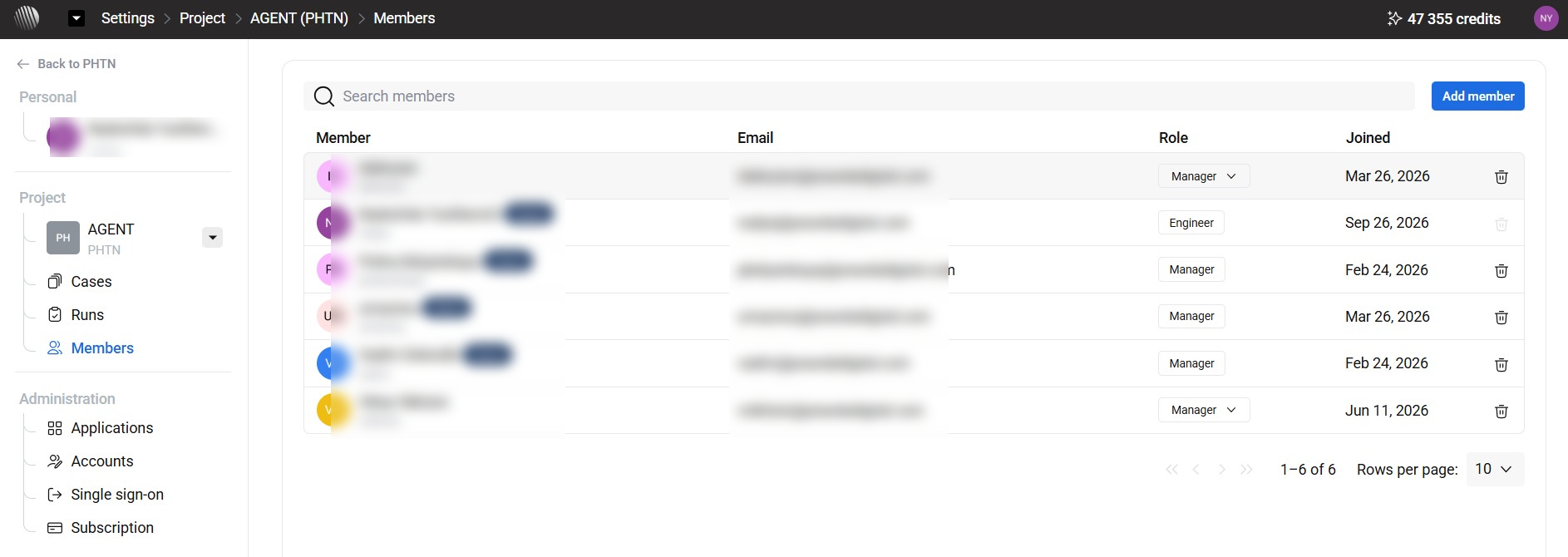
Each member entry includes:
- Name or avatar
- Assigned role
- Date added
Project Roles#
Access to project functionality is defined by the role assigned to each member.
Manager
- Manage project settings
- Manage members and roles
- Configure cases and runs
- Control project-level configuration
Engineer
- Create and edit cases
- Execute tests
- Review execution results
- Work with runs and configurations
Guest
- View cases, runs, and results
- Access logs and execution details
- No permission to modify project data
- No access to project settings
Owner
- Full control over projects
- Management of billing and integrations
- Control over access policies
- Ability to transfer ownership
Roles are assigned per project and can be updated from the Members page.
Case Settings#
Case settings allow you to:
- Enable or disable predefined fields, such as Description, Pre-conditions, and Attachments
- Define custom fields
- Configure case structure
Run Settings#
Run settings allow users to configure execution statuses, test configurations, and environments at the project level.
To access these settings:
- Open Settings.
- Select the relevant project.
- Navigate to Runs.
Run settings include:
Execution Statuses#
Execution statuses indicate the outcome or current state of a test execution.
Default statuses include:
- Passed — the test completed successfully.
- Failed — the test did not meet the expected result.
- Skipped — the test was not executed.
- Blocked — execution cannot proceed due to a dependency or issue.
Users can create additional statuses, edit existing ones, change their order, and configure which statuses indicate completed tests.
Test Configurations#
The Test configurations tab provides access to project-level test configuration settings.
Environments#
The Environments tab provides access to project-level environment settings.
Workspace Settings#
Workspace-level configuration is available in Administration.
It includes:
- Applications — connections to external tools and services
- Single Sign-On (SSO) — authentication configuration
- People — organization-wide user management
- Subscription — licensing and billing
These settings apply across projects and are managed at the workspace level.
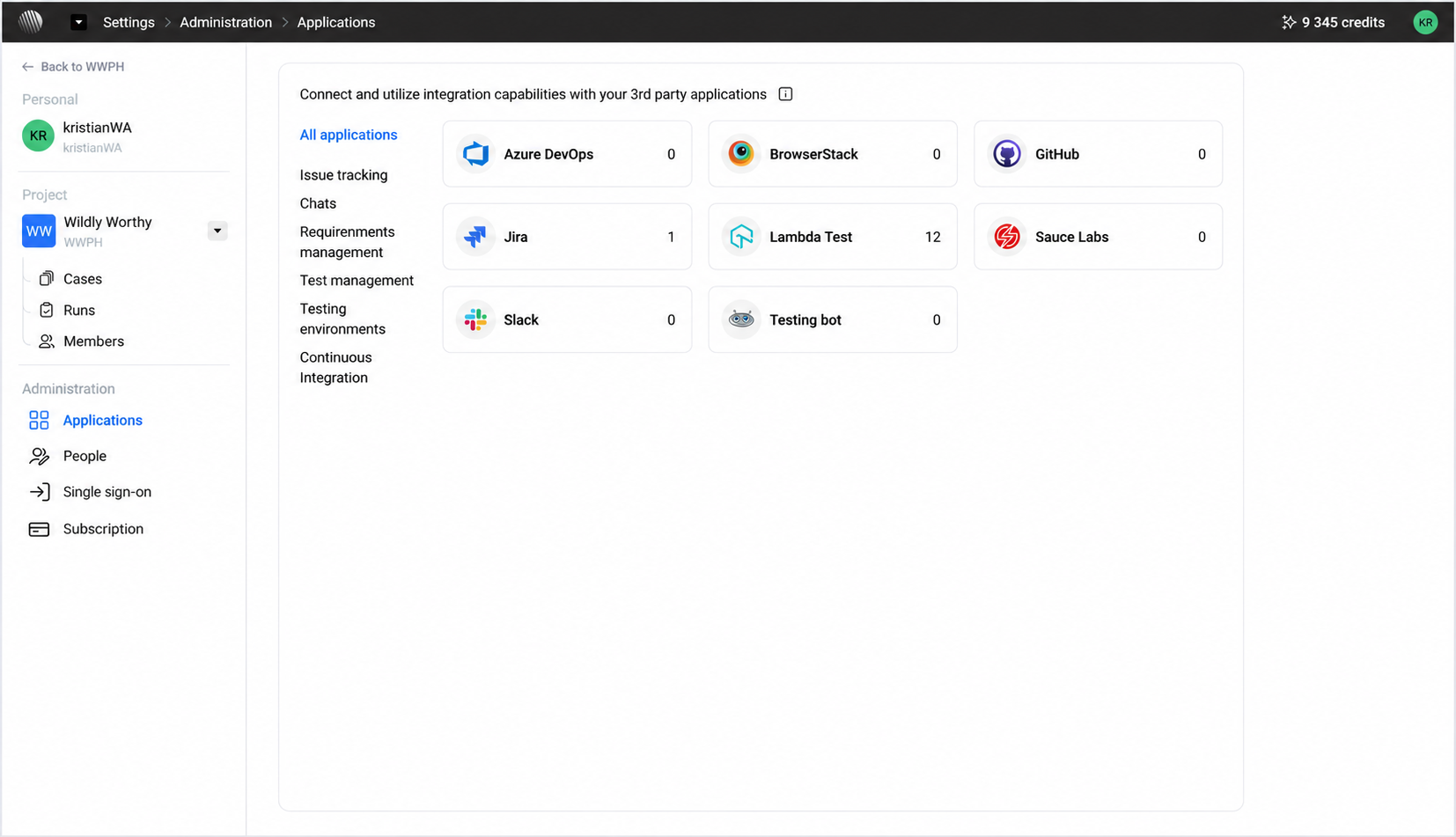
Applications#
Applications provide connections between Photon and external systems, including issue trackers, testing platforms, communication services, development tools, and AI providers.
Applications are available in Settings → Administration → Applications.
Available applications are grouped by category:
- Artificial Intelligence
- Issue Management
- Messaging and Notifications
- Requirements Management
- Test Management
- Testing Environment
Each application can be enabled and configured depending on the project or workspace setup.
Issue Management#
Available integrations include:
- Jira
- Azure DevOps
These integrations are used to link test results with issues in external issue-tracking systems.
Testing Environment#
Available integrations include:
- BrowserStack
- LambdaTest
- Sauce Labs
- TestingBot
- Photon Engine
These integrations provide environments for test execution.
Messaging and Notifications#
Available integrations include:
- Slack
- Microsoft Teams
These integrations are used for execution-related notifications.
Development Tools#
Development-related integrations include:
- GitHub
- Jenkins
These integrations support repository management, CI/CD pipelines, and interoperability with external development and testing tools.
The availability and configuration of each integration depend on the workspace setup.
Single Sign-On (SSO)#
Single Sign-On settings provide access to workspace-level authentication configuration.
People#
The People section is available under Settings → Administration → People.
It provides workspace-level user management across projects.
Project-specific membership and roles are managed separately under Project Settings → Members.
Subscription#
The Subscription section provides access to licensing and billing information.
CI/CD & External Access#
Photon can connect to external development and delivery systems through CI/CD pipelines, repository integrations, APIs, and webhooks.
This section describes integration capabilities and configuration considerations. It does not represent a separate settings menu in the Photon interface.
CI/CD Pipelines#
Test execution can be triggered from external CI/CD systems.
Typical integration includes:
- Triggering Runs from pipeline stages
- Passing parameters, such as branch, environment, or configuration
- Retrieving execution results
Execution may be triggered:
- On code changes
- During build steps
- Before or after deployment
Pipeline behavior, such as whether a failed execution blocks a release, is defined in the CI/CD system.
Common integrations include:
- Jenkins
- Azure DevOps
GitHub Integration#
GitHub integration is optional and depends on project configuration.
Pull Request Association#
When enabled, executions can be linked to pull requests.
This can include:
- Association of Runs with specific pull requests
- Visibility of execution results during code review
Triggering execution from pull request events depends on pipeline configuration.
Status Checks#
Execution results can be reported to GitHub, including:
- Pass or fail status
- Link to execution details
This information appears in the repository interface.
APIs and Webhooks#
Integration with external systems is also available through API access and event notifications.
API Access#
API tokens are managed in Settings → Personal → Access Tokens.
The API supports:
- Triggering Runs
- Retrieving execution results
- Accessing test data
Available operations depend on project configuration.
Webhooks#
Webhooks send event notifications to external systems.
Supported events may include:
- Execution completion
- Failures
- Report availability
Webhook configuration includes:
- Target endpoint
- Selected event types
- Optional authentication