Runs#
Runs define which cases are included in test execution. Milestones organize testing activities into phases, such as releases, sprints, or regression cycles.
Photon stores execution records, allowing users to review execution history, analyze failures, and compare results.
Runs#
A Run defines the set of cases to be executed.
Creating and Starting a Run#
Test execution is performed through a Run.
To start execution:
- Open Runs.
- Create a new Run or open an existing one.
- Verify the selected cases and execution scope.
- Click Test.
- Configure execution parameters, such as the execution engine, browser, and operating system.
- Click Start.
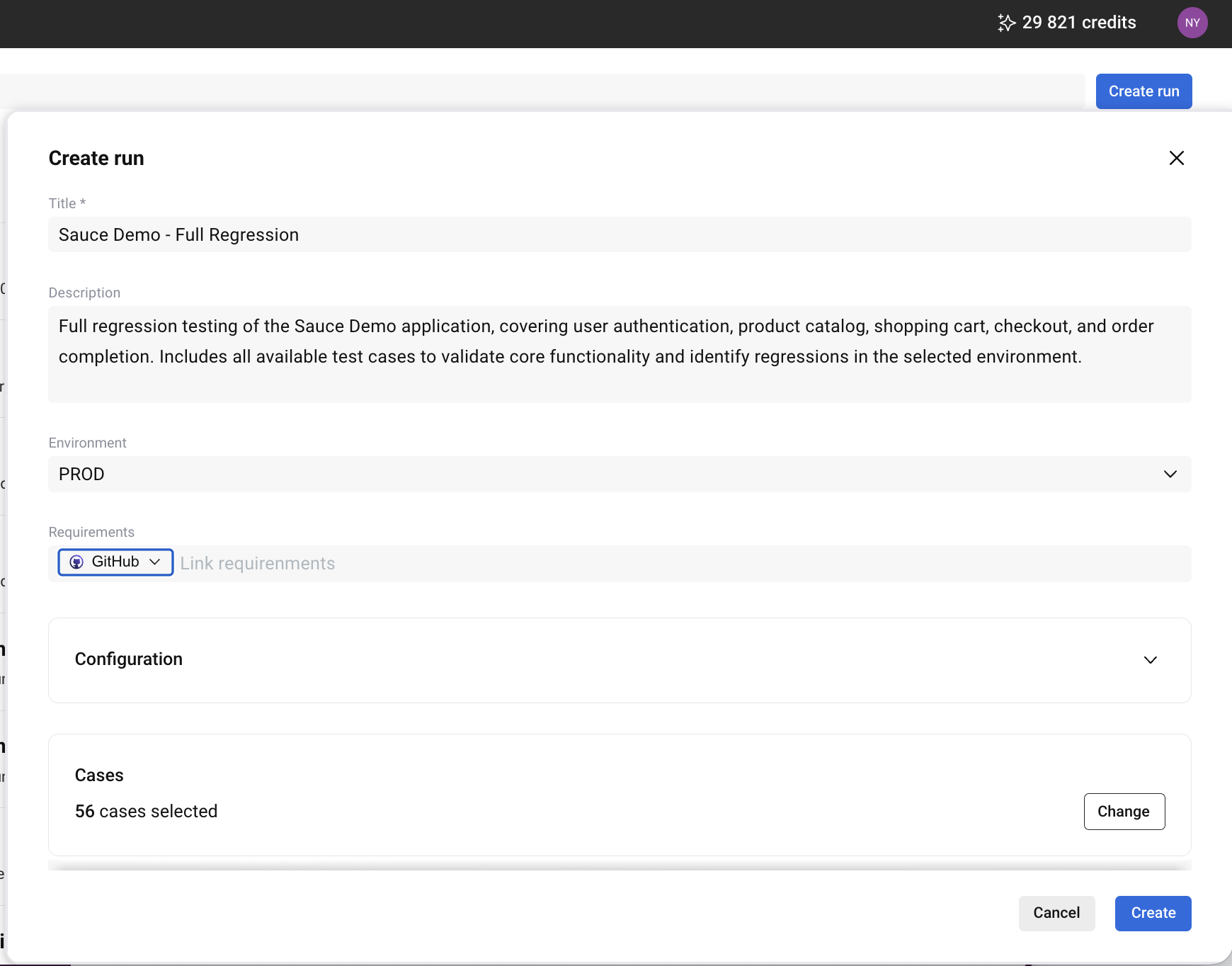
After execution starts, Photon creates an Execution to record execution results.
If you need to create cases first, see Creating Cases.
Executions and Results#
An Execution is a record of a Run being executed. Each time a Run is started, Photon creates an Execution record that can be used to review test results and execution history.
Starting an Execution#
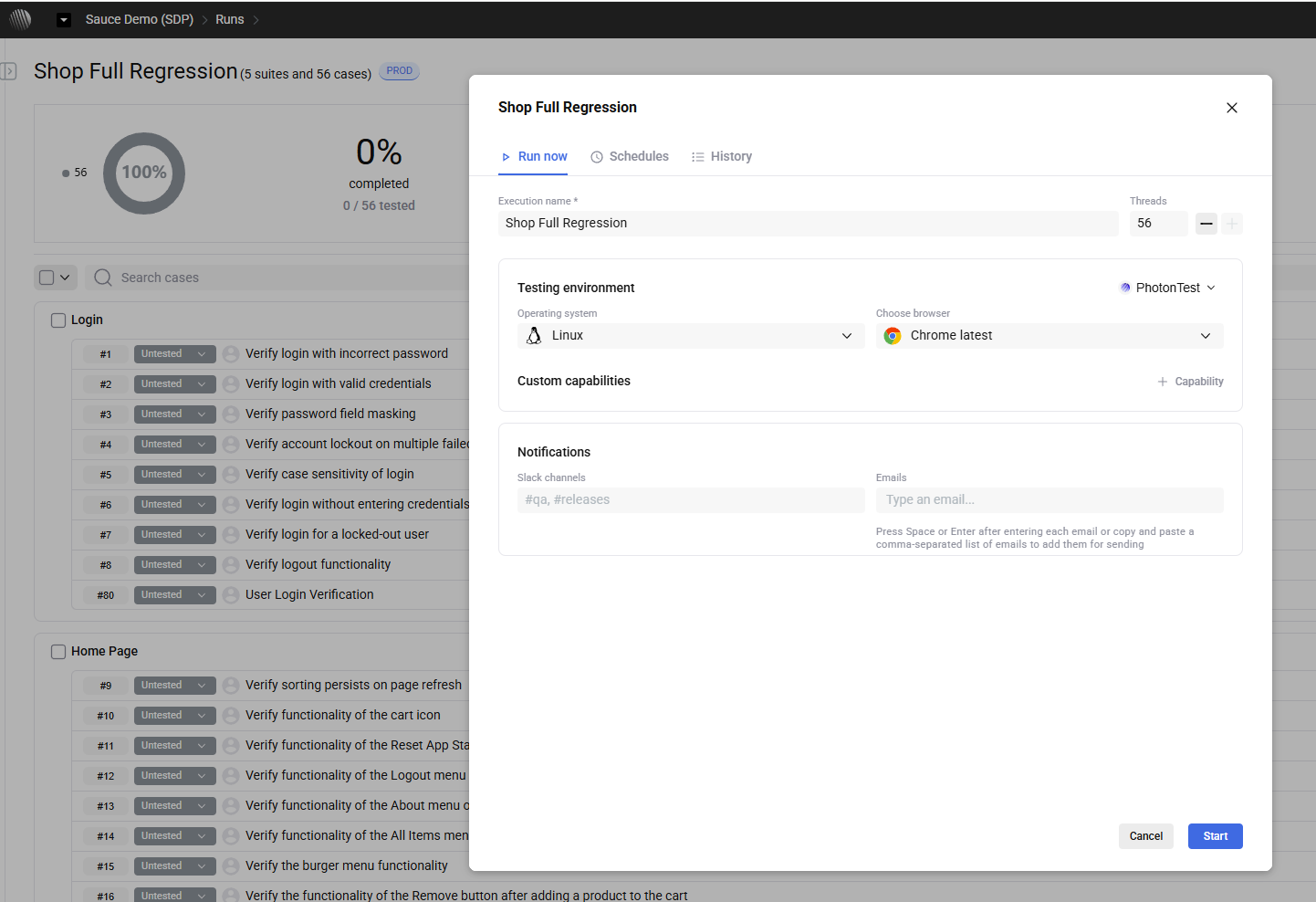
To start an Execution:
- Open Runs and select the Run you want to execute.
- Click Execute to open the execution configuration window.
- On the Run now tab, configure the execution settings:
- Execution name — enter a name to identify the execution.
- Threads — specify the number of parallel execution threads.
- Testing environment — select the execution provider, operating system, and browser.
- Custom capabilities — add additional execution capabilities when needed.
- Configure notifications if required.
- Click Start to begin execution.
Scheduling Executions#
The execution configuration window also provides a Schedules tab for managing scheduled executions.
To access scheduling options:
- Open the relevant Run.
- Click Execute.
- Select the Schedules tab.
Scheduling allows teams to configure executions to run automatically rather than starting each execution manually.
Configuring Notifications#
The Notifications section allows users to specify where execution-related notifications should be sent.
Available notification options include:
- Slack channels — enter one or more Slack channels.
- Emails — enter email addresses for notifications.
Notification recipients can be configured before starting an Execution.
Execution History and Results#
Each time a Run is started, Photon creates an Execution record.
In the Executions section, you can:
- View execution history
- Filter by status, environment, or configuration
- See aggregated results
Opening an Execution provides:
- Overall status and completion percentage
- Execution duration
- Environment details, such as browser and platform
- List of executed cases
Reviewing Case Results#
Execution results can be reviewed after a Run starts.
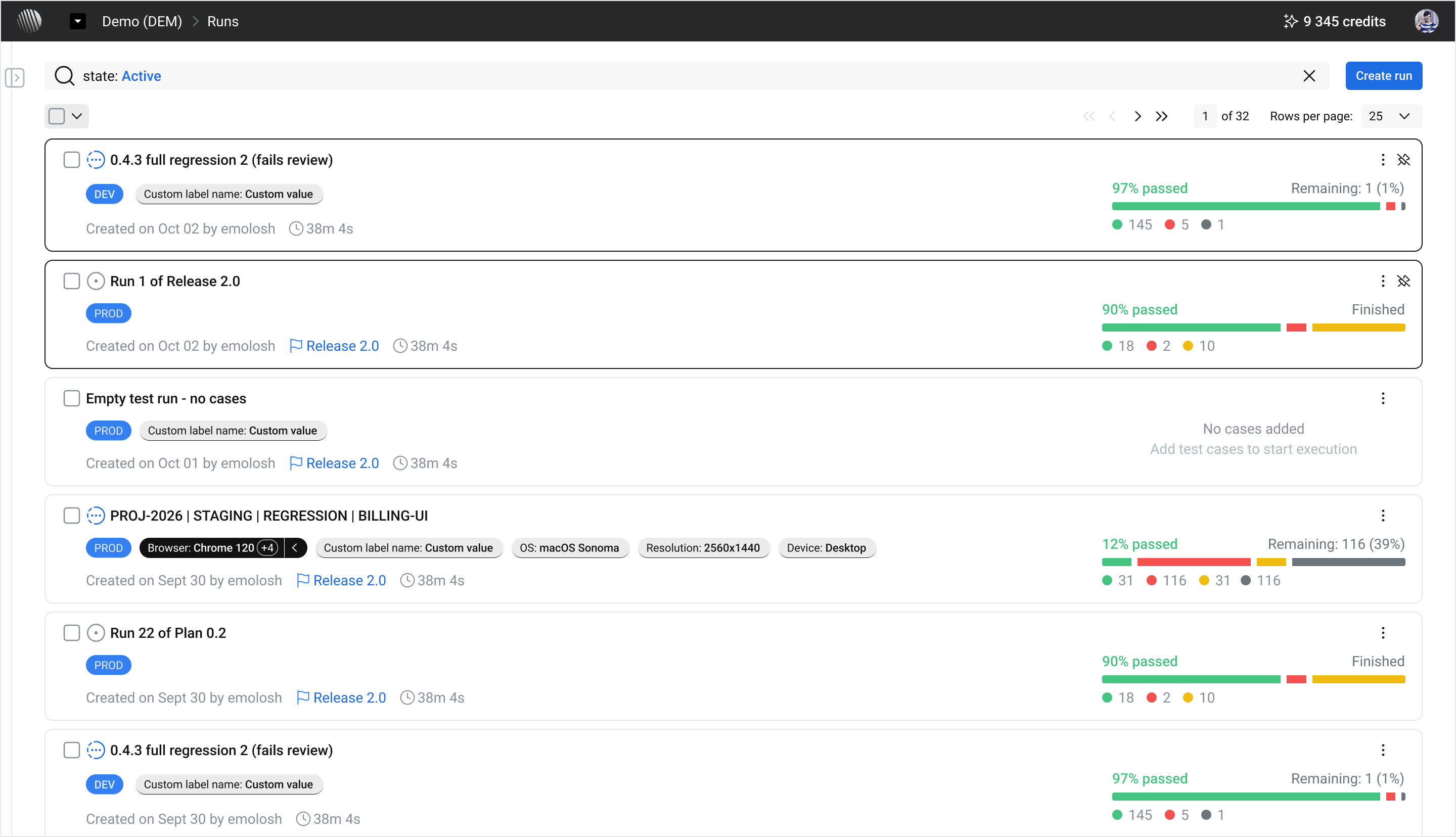
You can:
- Track execution progress
- View test statuses
- Open individual test results
- Review logs and execution details
For each executed case, you can review:
- Status (Passed, Failed, etc.)
- Duration
- Session information
- Execution mode (for example, record)
Execution logs and step-level messages are available for analysis.
Failure Analysis#
When an execution fails, use the available execution data to identify the cause.
Relevant information may include:
- Step-level logs
- Warnings and error messages
- Execution status
- Timing and session data
Typical failure causes include:
- Unsupported or incorrect actions
- Missing step parameters
- Invalid validation logic
- UI changes
- Environment issues
Where AI-assisted analysis is available, Photon may provide suggestions for:
- Identifying likely causes
- Adjusting actions or validations
- Proposing alternative interaction paths
AI-generated suggestions should be reviewed before they are applied.
Execution Monitoring and Performance#
Execution progress and results are available through Runs and Executions.
Available data includes:
- Execution duration
- Result distribution
- Environment configuration
- Historical runs
Execution time depends on:
- Number of cases
- Application behavior
- Selected environment
Historical executions can be used to compare results over time.
Milestones#
A Milestone represents a specific execution phase within the testing process. It is typically aligned with a release stage, sprint, regression cycle, or another time-bound checkpoint.
In the Milestones view, each item includes its name, optional start and due dates, and current status (open or completed).
Milestones group executions rather than cases. Cases remain defined in the Test Repository and can be reused across different phases.
Milestones are commonly used for:
- Release validation
- Sprint-based testing
- Regression cycles
- Hotfix verification
Working with Milestones#
Milestones are created from the Milestones section using the + Milestone action.
Each milestone includes:
- Name (required)
- Start date (optional)
- Due date (optional)
- Description (optional)
Once created, milestones appear in a list where their status and scheduling information can be reviewed.
Milestones can be updated at any time. This includes editing details, adjusting dates, or marking a milestone as completed.
Maintaining Milestones#
Milestones can be adjusted as timelines change. Dates can be updated, and new milestones can be introduced to reflect additional phases of validation.